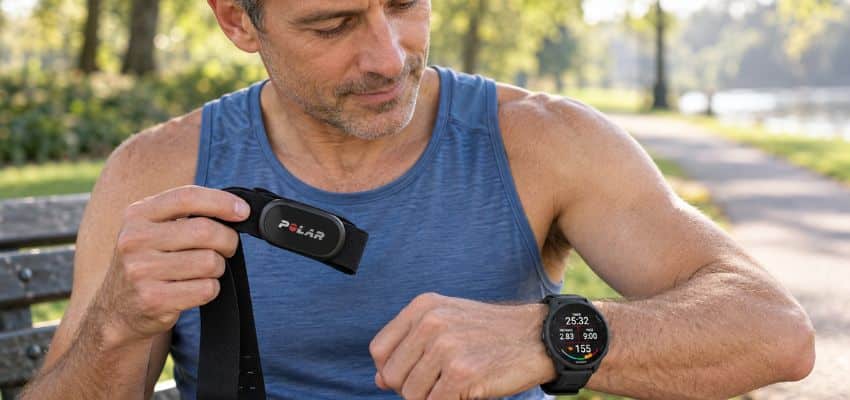
A surprising zone alert doesn’t necessarily mean your run was harder.
A familiar, comfortable run shows up as “hard” on your watch. Before changing your pace – or the zone numbers – I’d check how the watch calculated them. The same heart rate can land in a different zone depending on the method selected.
- Max HR, HRR, and LTHR are different methods
Max HR zones use a percentage of your estimated or entered maximum heart rate. HRR uses the gap between resting and maximum heart rate; LTHR uses a threshold heart-rate value. Their percentages aren’t interchangeable, so I’d note the selected method before editing anything.
- Automatic zones are still estimates
A watch may start with age-based values or adjust them from recorded activity. Neither is automatically a personal measurement: the American Heart Association describes age-based maximum heart rate as an average, and device options vary. Check your model’s documentation, such as Garmin Support or Polar Support, to see what “automatic” means on your watch.
- Where the starting values came from
Look for any saved resting, maximum, or threshold heart-rate value. A value entered earlier may still be shaping the zones you see today.
If you’ve found zone percentages elsewhere, check whether they’re based on max HR, HRR, or LTHR before copying them. A percentage from one method may not mean the same thing in another.
Find the settings on the watch
Zone controls might be on the watch, in its phone app, or in both places. I’d start with whichever screen makes it easiest to see the calculation method and all the zone boundaries together. The exact labels vary by model, so treat the paths below as clues rather than instructions to follow word for word.
Garmin’s menus vary by model, but this short walkthrough makes the general sequence easier to recognize before you look for the equivalent settings on your own watch.
On the watch, look under Settings → User profile → Heart rate zones. You may instead find Training, Workout, or Sport settings along the way. Open the running-specific settings if the watch offers separate zones for different activities; a general heart rate setting may not be the one your runs use.
If that route leads nowhere, search your model’s official manual for heart rate zones. Garmin’s device manuals and Apple’s Watch guide are better checks than a screenshot from a different model.
If easy-to-find controls matter to you, they’re also worth considering when you choose a beginner-friendly running watch.
Use the phone app when it is easier
In the companion app, try Device settings → User profile → Heart rate zones, or look under running activity settings. A phone screen can make it easier to compare boundaries before saving, but changing a number in the app doesn’t always mean the watch has received it.
After you save, let the device sync, then reopen the running zone settings on the watch to confirm the values arrived. If they haven’t, check that the app is connected and sync again before you head out.
That same device connection also matters when you connect a running watch to Strava, so it is worth solving a sync problem before changing more settings.
Enter the zones without mixing methods
-
Choose one calculation basis
Before entering numbers, I check whether the watch is using maximum heart rate, heart-rate reserve (HRR), or lactate threshold heart rate (LTHR). Boundaries worked out for one method shouldn’t be entered under another, even if both screens show percentages.
-
Check the input it needs
A max-HR setup needs a maximum heart-rate value; HRR also needs resting heart rate; LTHR needs a threshold value. I check those inputs before changing individual zones, since the watch may calculate the boundaries from them.
-
Check boundaries and the Running profile
I read the zones back in order, from lowest to highest, and check whether each field expects beats per minute or a percentage. If the watch has separate sport profiles, I make sure I’m editing Running rather than a general or cycling profile.
-
Save, sync, and look again
After saving in the app or on the watch, I let it sync and reopen the Running zones on the watch. That last check catches settings that didn’t transfer or were changed in the wrong place.
A recovery-time estimate is a separate feature, not confirmation that the zone boundaries are correct.
Understand the five zones
The five labels are a way to describe effort, from easier to harder. They only make sense in relation to the boundaries you entered, though. I use the zone on my watch as a clue about the run, not a verdict on how it should feel.
Zones 1–2 cover easier effort
Zone 1 is the lowest range: the kind of effort where breathing feels relaxed and talking is easy. Zone 2 is a step up but should still feel comfortable enough for conversation. Some watches give these zones names such as “recovery” or “easy”; the names are less important than where the boundaries sit.
I wouldn’t chase Zone 2 just because it appears on the screen. If a run feels easy and the watch calls it Zone 3, that could mean the boundaries need another look—not that I need to slow down immediately.
Zones 3–5 cover harder effort
Zone 3 usually suggests a steadier effort: talking may take more attention. Zone 4 points to harder work, when conversation becomes difficult. Zone 5 is the highest range, associated with very hard effort that isn’t comfortable to sustain for long.
Those descriptions are rough guides, not a test you have to pass. Hills, heat, fatigue, and a questionable sensor reading can all make the number and the feeling disagree. I pay attention to both rather than letting a label overrule my breathing.
Test the setup on an easy run
I’d use a familiar easy run as a plausibility check, not a test of whether I can stay in a particular zone. Give the watch a few minutes to settle, then compare its display with how the run feels.
The same restraint helps when reading pace on a running watch: one screen field should not overrule a familiar effort.
Compare the zone with breathing and effort
The CDC’s talk test offers a simple reference: if I can talk comfortably, the effort is likely moderate; if I can manage only a few words, it’s harder.
If the watch repeatedly labels a comfortable run as very hard, I’d check the calculation method, entered values, and Running profile before moving any boundaries. One surprising reading isn’t enough reason to change them.
Check watch fit and cadence lock
Before changing my zones because of one surprising reading, I’d check whether the watch had a good signal. A wrist sensor needs steady contact with skin.
I’d wear the watch snugly, just above the wrist bone, so it doesn’t slide around, and make sure the sensor is clean. If the reading seems odd at the start of a cold run, I’d give it a few minutes and look again.
Cadence lock is another possibility: the watch may pick up the rhythm of your steps instead of your pulse.
A clue is a sudden jump in displayed heart rate while your breathing and pace stay about the same – especially if the reading looks close to your steps-per-minute figure. That’s a reason to question the reading, not immediately rewrite every zone boundary.
If it keeps happening, I’d try the steps for fixing inaccurate wrist heart rate readings before editing the settings again. Where available, comparing the watch with a chest-strap reading can also help separate a sensor problem from a zone-setting problem.
On the next easy run, notice whether the reading settles after you adjust the watch. If the display spikes again without a matching change in effort, troubleshoot the sensor before changing your zones.
Medication and health conditions can change how heart rate responds to exercise. Chest pain, faintness, unusual breathlessness, or an irregular heartbeat are reasons to stop and seek appropriate medical advice, not to keep editing the colored zones.
Once I’ve saved the calculation method and checked that the Running profile has the zones I entered, I leave the settings alone for a few runs. I compare the watch’s zone with how hard the effort feels and whether I can talk comfortably. One surprising number isn’t enough for me to change the boundaries, especially if the watch may have slipped or picked up my cadence. If the same mismatch keeps showing up, I’ll check the settings and sensor fit again before adjusting anything.